

ACL Management
ACL Management – Document Access Control
Purpose
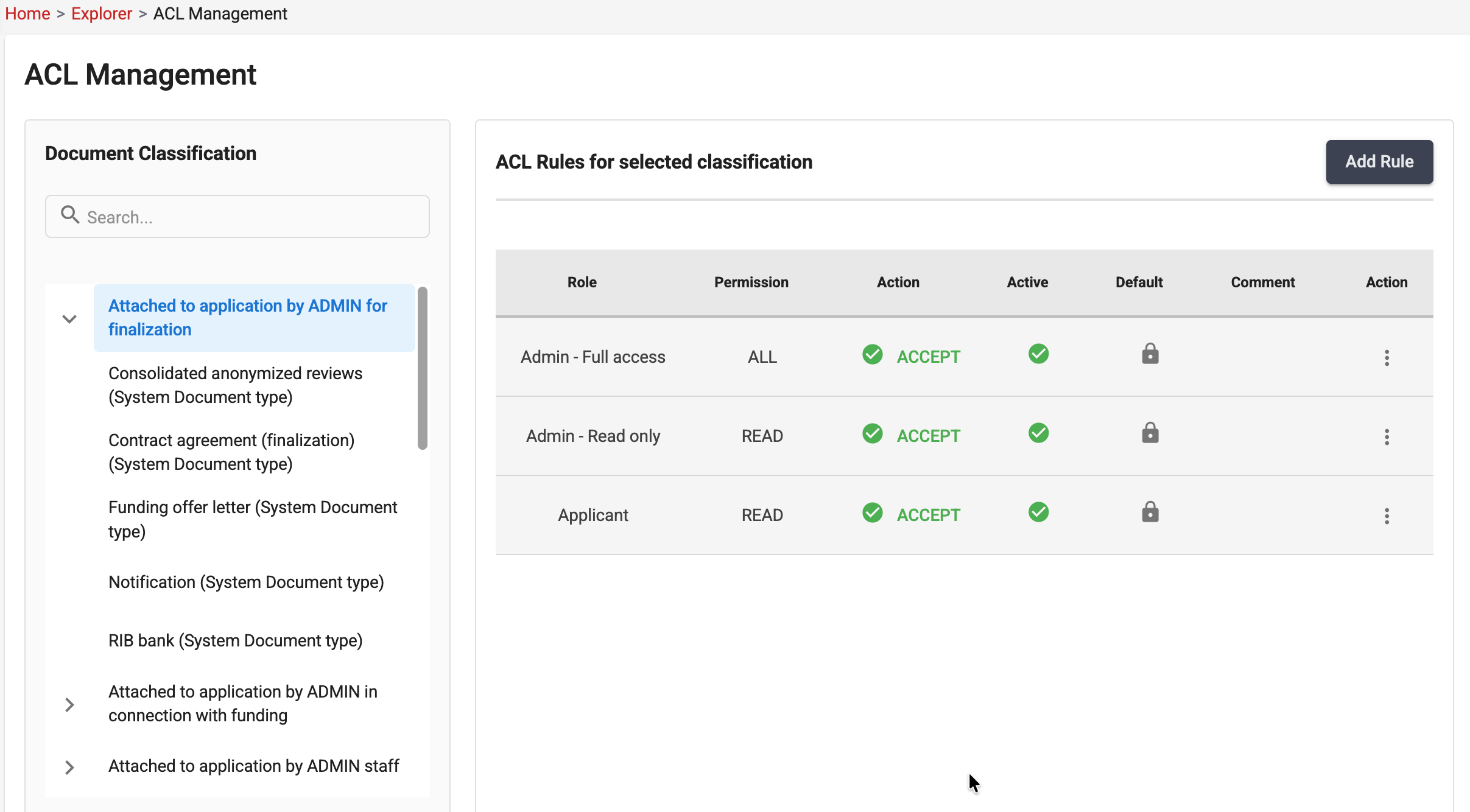
The Access Control List (ACL) system is used to manage and enforce access permissions on documents. It ensures that only authorized users, groups, or roles can access and perform actions on specific documents.
How It Works
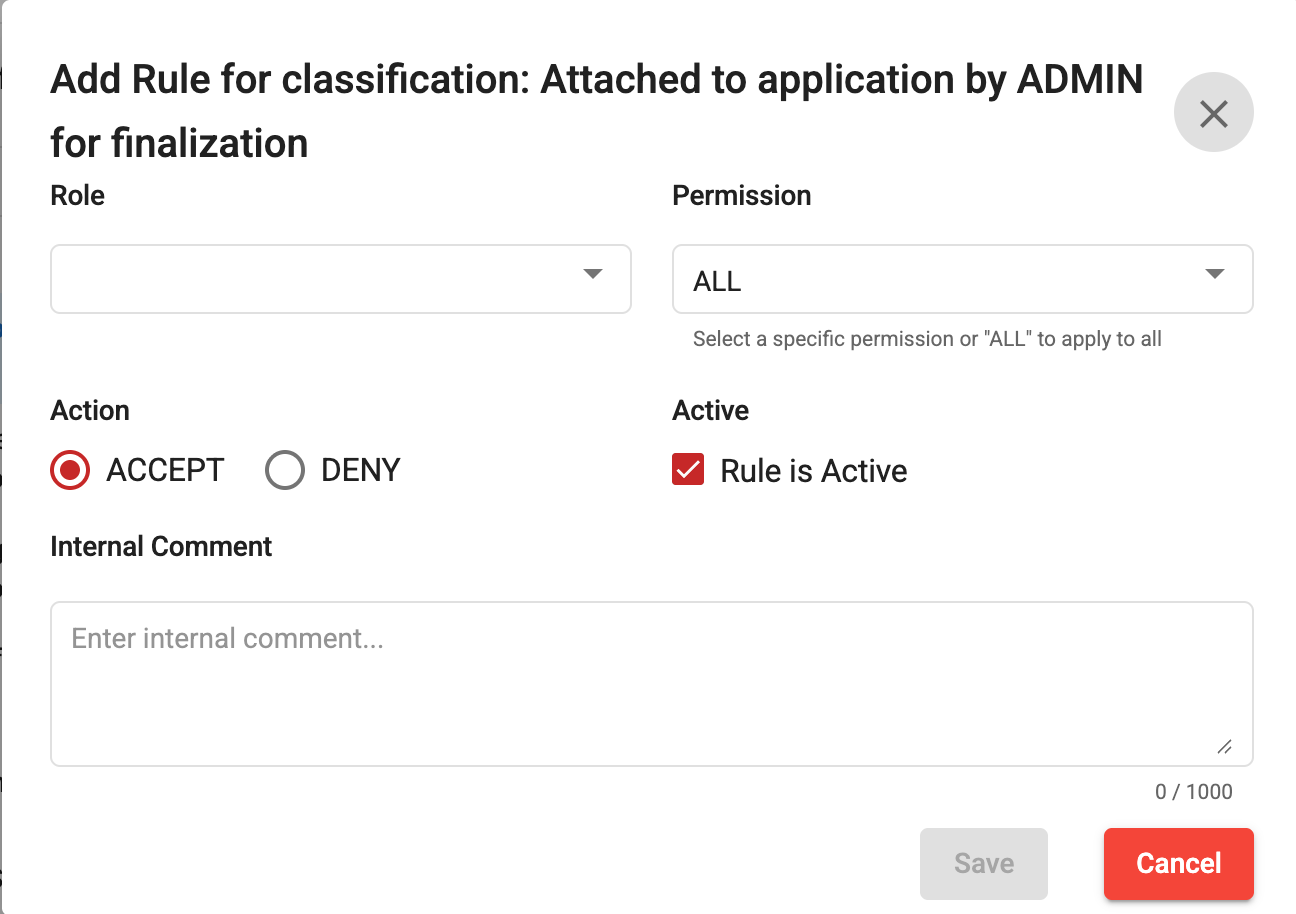
Each document is associated with an ACL that defines:
- Which roles can access the document.
- The level of permissions granted.
- Any specific access restrictions that apply.
Permission Types
| Permission | Description |
|---|---|
| Read | Allows users to view the document. |
| Write | Allows users to modify the document content, if applicable in the screen. |
| Delete | Allows users to delete the document, if applicable in the screen. |
Permission Inheritance
Documents may inherit permissions from higher-level entities, such as:
- Document Classifications
- Document types
When a document-specific ACL is configured, it may override or complement inherited permissions depending on the system configuration.
Default ACL Rules
Each document is automatically assigned a set of default ACL rules when it is created.
These default rules are mandatory and cannot be permanently removed from the document’s ACL configuration. However, they can be disabled when access restrictions are required.
This approach ensures that a baseline security model is always maintained while still providing flexibility to adapt access permissions to specific business needs.
Note: Disabled default ACL rules remain visible in the ACL configuration for auditability and can be re-enabled at any time by authorized users.
Access Validation Process
When a user attempts to access a document:
- The system identifies the user and their roles memberships.
- The document ACL is evaluated.
- Inherited permissions are considered.
- Access is granted or denied based on the applicable rules.
Search
Document Search
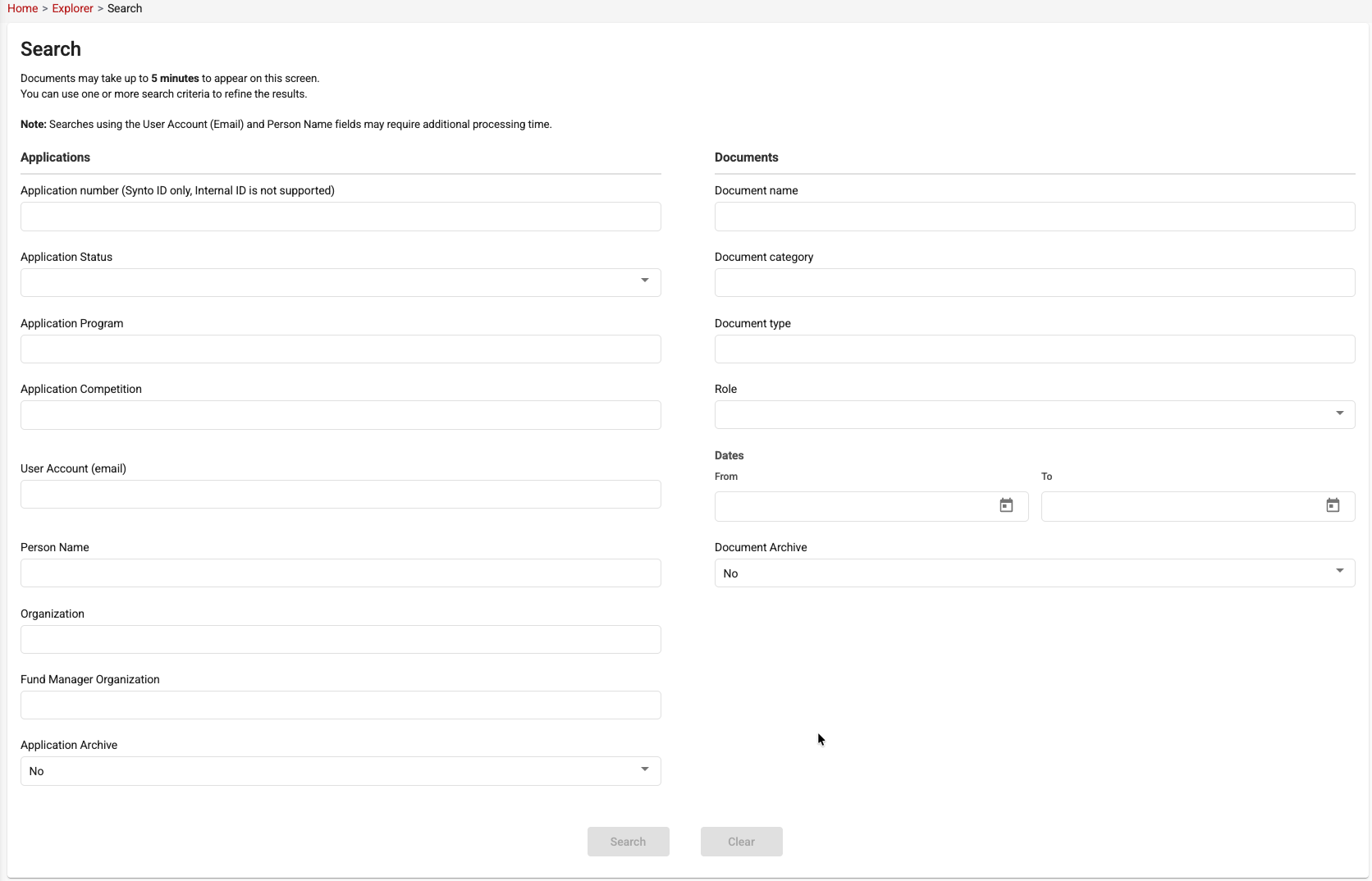
The Document Search screen provides advanced search capabilities to help users quickly locate documents and applications within the system.
Users can search using one or multiple criteria to refine the results. Search criteria are grouped into two main sections:
Application Filters
The following filters can be used to search for documents associated with a specific application:
- Application Number (Synto ID only)
- Application Status
- Application Program
- Application Competition
- User Account (Email)
- Person Name
- Organization
- Fund Manager Organization
- Application Archive (Yes/No)
Document Filters
The following filters can be used to locate specific documents:
- Document Name
- Document Category
- Document Type
- Role
- Date Range (From / To)
- Document Archive (Yes/No)
Search Process
- Enter one or more search criteria.
- Click Search to retrieve matching records.
- Use Clear to reset all search fields.
Notes
- Documents may take up to 5 minutes to appear in search results after being uploaded or modified.
- Searches using User Account (Email) and Person Name may require additional processing time.
- Using multiple search criteria can help narrow down results and improve search accuracy.
Search Results
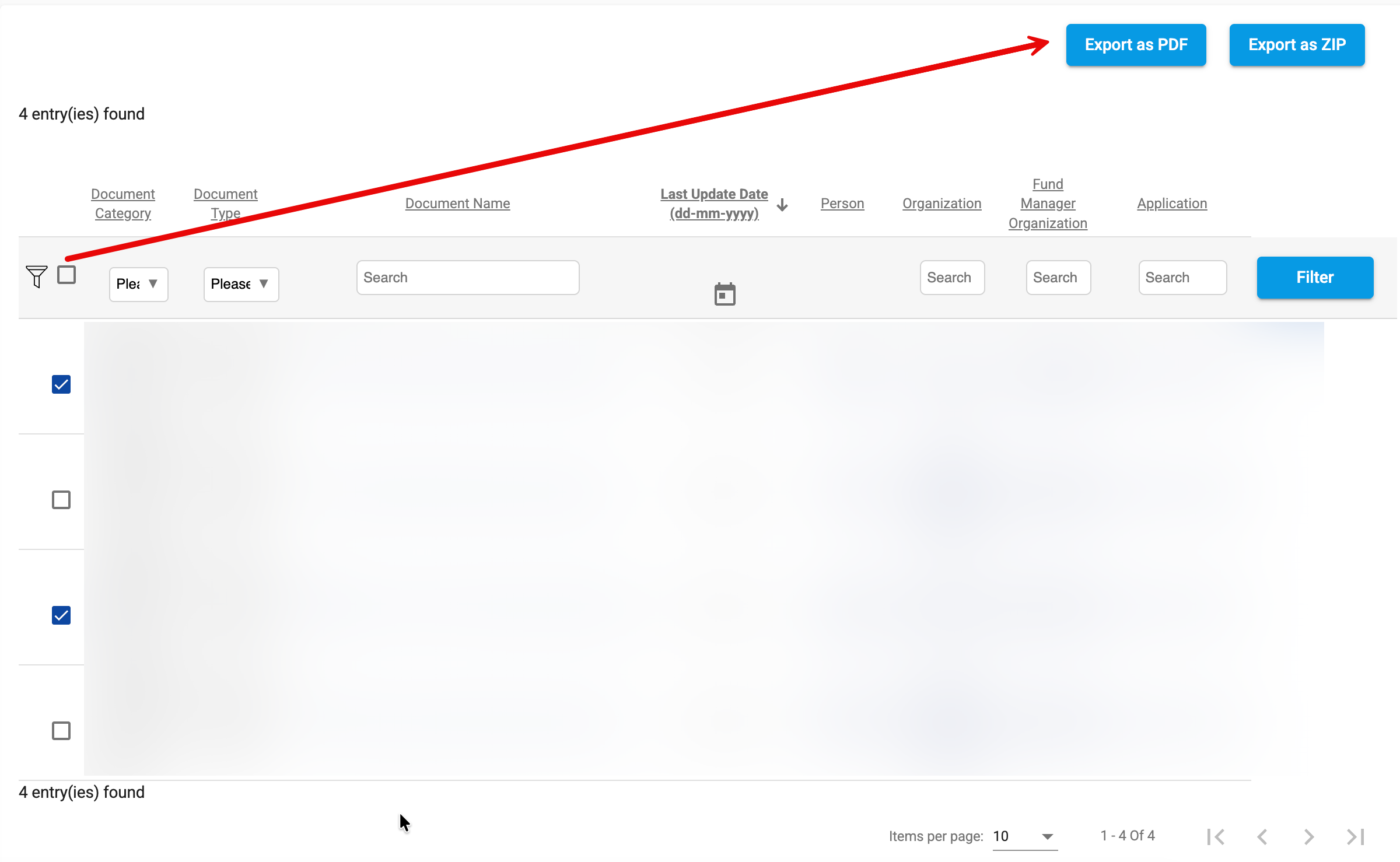
Search results are displayed in a tabular format and provide key information about each document, including:
- Document Category
- Document Type
- Document Name
- Last Update Date
- Person
- Organization
- Fund Manager Organization
- Application Number
Users can further refine the displayed results using the filters available at the top of each column.
The Document Name and related entity references are clickable links that allow users to navigate directly to the document or to the entity where the document is associated (for example, an application, person, or organization record).
This functionality provides a quick and efficient way to understand the context of a document and access the related records without performing additional searches.
Search results also support sorting, filtering, and pagination to facilitate navigation through large result sets.
Export Options
Search results support exporting selected documents in either PDF or ZIP format.
PDF Export
The PDF export option attempts to merge the selected documents into a single PDF file. This functionality is intended for smaller document sets.
Important Notes:
- Merging more than 10 documents into a single PDF may not always succeed.
- The actual limit varies depending on the size, complexity, and content of the selected files.
- Consolidated documents can significantly increase processing requirements because they often already contain multiple merged documents.
- For example, attempting to merge 90 documents into a single PDF is likely to exceed the system’s processing capabilities.
- Testing has shown that PDF exports of approximately 30 documents may succeed depending on the document types and content involved.
- Improvements to the PDF merge process are planned for future releases.
ZIP Export
For large document selections, the ZIP export option is recommended.
ZIP exports package the selected files without attempting to merge them, providing a more reliable solution for high-volume document extractions and avoiding the limitations associated with PDF concatenation.
As a best practice, use ZIP export whenever a large number of documents or consolidated documents are selected.
Enhanced Document Management Module
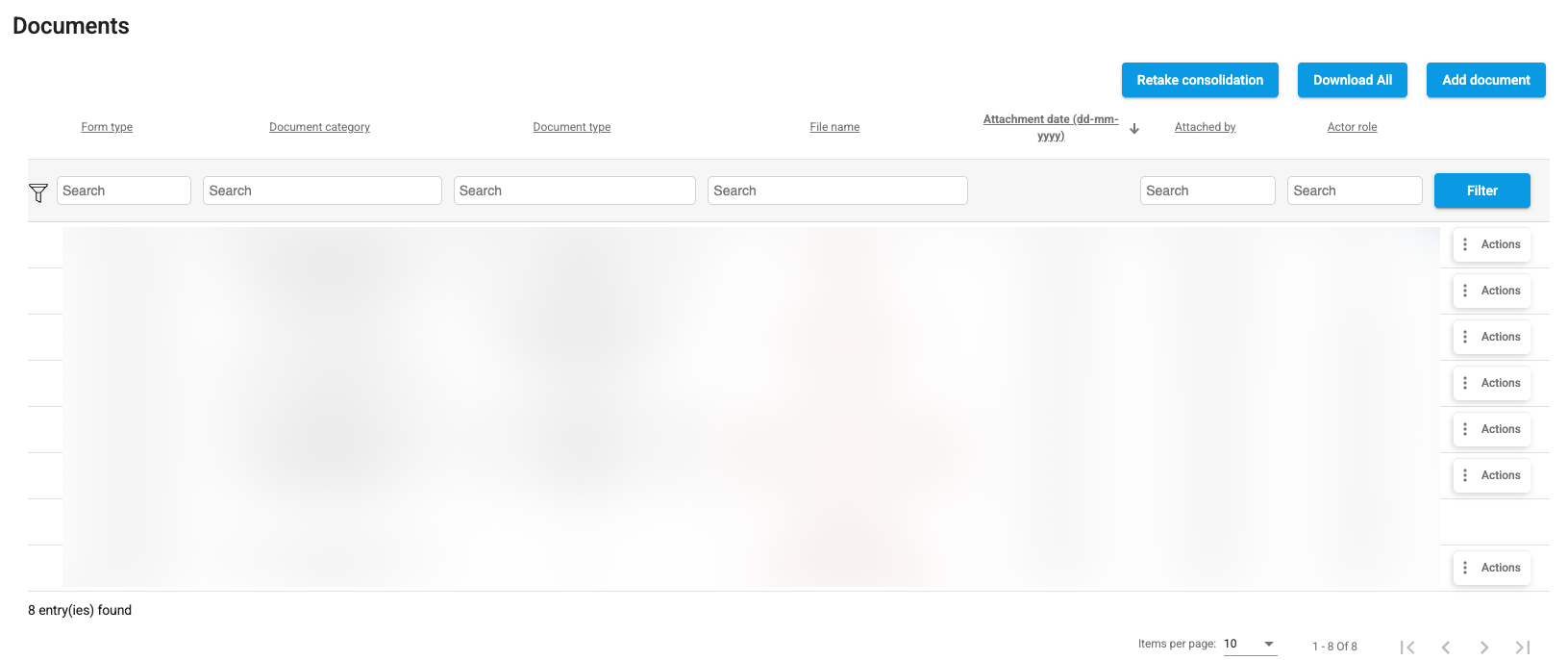
As part of the ACL Management implementation, the document listing component has been completely redesigned and is now used consistently across the entire platform.
The new document grid provides a unified user experience for viewing, filtering, and managing documents while fully supporting Access Control List (ACL) rules. Users only see documents they are authorized to access based on their assigned roles and permissions.
Key Improvements
ACL-Aware Document Display
The document grid now enforces document-level security through ACLs, ensuring that document visibility and available actions are aligned with the user's permissions.
Standardized Document Management
A single document component is now used throughout the platform, providing:
- Consistent document presentation.
- Advanced filtering and sorting capabilities.
- Standardized document actions.
- Improved maintainability and user experience.
Enhanced Document Block Configuration
Document blocks have been redesigned to support more granular client-specific configurations.
eVision can now define document requirements and behaviors with greater precision, allowing the platform to better accommodate unique business processes, programs, and customer requirements.
Examples of configurable elements include:
- Available document categories and types.
- Role-specific document visibility.
- Upload permissions.
- Required versus optional documents.
- Client-specific document workflows and validation rules.
This enhanced flexibility allows organizations to tailor document management to their operational needs while maintaining a consistent user experience across the platform.